In today’s digital age, managing an ever-growing volume of data is a universal challenge. From cherished family photos and videos to critical work documents and extensive gaming libraries, our digital lives demand ample and reliable storage. When your computer’s internal drive starts to feel cramped, an external hard drive like the WD Elements series emerges as a practical and cost-effective solution. This guide will delve into what makes WD Elements a popular choice, how it compares to other options, and everything you need to know to select and use one effectively.
What is an External Hard Drive?
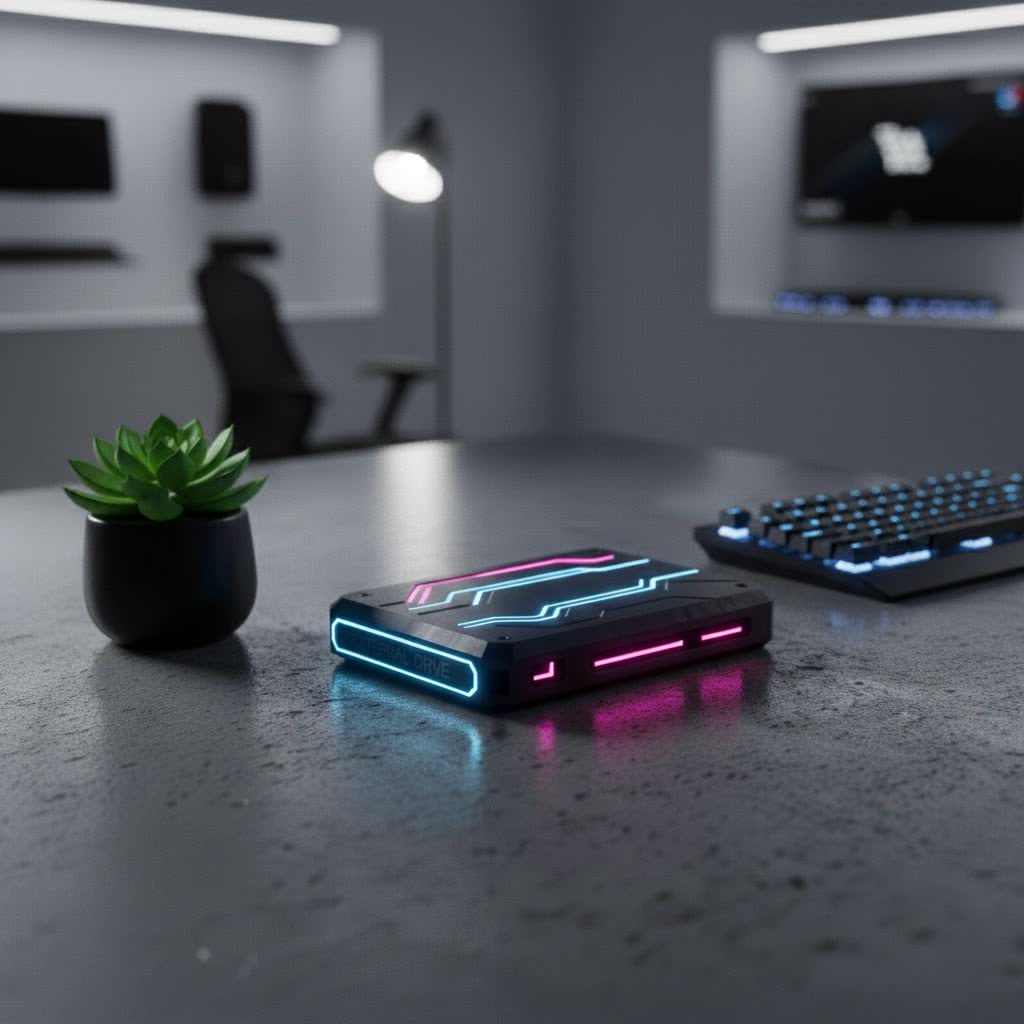
An external hard drive is a portable storage device that connects to your computer, laptop, or other devices, providing additional space beyond your internal storage. Essentially, it’s a self-contained hard drive encased in a protective shell, designed for easy connectivity and data transfer. These devices are crucial for expanding capacity, backing up important files, and enabling convenient data portability. The WD Elements series stands out as a fundamental category of these devices, offering straightforward, high-capacity storage without unnecessary complexities.
Why You Need an External Hard Drive?
The reasons to invest in an external hard drive are manifold, addressing common digital pain points for both everyday users and professionals. Firstly, your computer’s internal storage, whether a laptop or desktop, has finite space. An external drive provides an immediate and substantial boost, allowing you to store more without compromising your system’s performance. Secondly, data loss is a devastating prospect; hardware failures, accidental deletions, or malware attacks can wipe out years of precious memories or critical work. An external hard drive offers a robust solution for backing up your data, creating a secure duplicate of your most important files. Lastly, for those who need to transfer large files between devices or work on the go, the portability of external drives is invaluable, offering a convenient way to carry gigabytes or even terabytes of data wherever you need it.
Classifying External Hard Drives
External hard drives come in various forms, primarily categorized by their underlying technology and physical size. Understanding these classifications helps in pinpointing the right type for your specific needs.
- By Technology:
- HDD (Hard Disk Drive): These drives use spinning platters and read/write heads to store data magnetically. HDDs like the WD Elements are known for offering very large capacities at a lower cost per gigabyte, making them ideal for bulk storage and backups. However, they are generally slower and more susceptible to physical shock compared to SSDs.
- SSD (Solid State Drive): SSDs store data on flash memory chips, similar to a large USB stick. They offer significantly faster speeds, superior durability (due to no moving parts), and are more compact. The trade-off is a higher price point per gigabyte, making them typically preferred for speed-critical applications or rugged portability rather than pure mass storage.
- By Size/Form Factor:
- 2.5-inch Drives: These are compact, typically bus-powered (meaning they draw power directly from the USB connection), and highly portable. WD Elements Portable drives fall into this category, perfect for laptop users or anyone needing storage on the move.
- 3.5-inch Drives: Larger in size, these drives usually require an external power adapter. They are generally designed for desktop use, offering even greater storage capacities and sometimes slightly better performance due to their larger internal components. WD Elements Desktop drives represent this segment, providing massive storage for stationary setups.
The WD Elements series primarily consists of HDDs, balancing impressive capacity with affordability, available in both portable 2.5-inch and high-capacity 3.5-inch desktop versions.
WD Elements vs. WD My Passport: A Detailed Comparison
When considering a Western Digital external hard drive, users often find themselves weighing the WD Elements against the WD My Passport. Both are popular choices, but they cater to slightly different user priorities.
The WD Elements line is designed for simplicity and value. It offers straightforward, plug-and-play storage without extra bells and whistles. You get a reliable hard drive with a solid enclosure, maximizing storage capacity for a minimal price. This makes it an excellent option for users whose primary need is mass storage, like backing up an entire computer, offloading large media files, or expanding game console storage, and who don’t require advanced security features.
In contrast, the WD My Passport series is positioned as a more feature-rich portable storage solution. Its key differentiators include built-in hardware 256-bit AES encryption and bundled backup software (like WD Discovery or SmartWare). This means your data is protected with password security at the hardware level, providing an extra layer of defense against unauthorized access if the drive is lost or stolen. The My Passport also often boasts a more aesthetically refined design and may sometimes incorporate slightly faster internal drives, though performance differences with Elements are often marginal for typical HDD use. Due to these added features, My Passport drives typically come at a slightly higher price point.
Ultimately, the choice hinges on your specific needs: if you prioritize maximum storage for your money and don’t require integrated security or backup software, the WD Elements is a fantastic, no-frills option. If data security, password protection, and automated backup features are paramount, the WD My Passport justifies its higher cost.
Choosing Your WD Elements External Hard Drive
Selecting the right WD Elements drive involves a few key considerations to ensure it perfectly matches your storage habits and lifestyle.
- Dung lượng (Capacity): This is arguably the most crucial factor. WD Elements drives are available in a wide range of capacities, from 1TB for basic backups to 20TB+ for comprehensive archiving. Assess your current data footprint and anticipate future needs. Consider whether you’ll be storing documents, photos, 4K videos, or a vast game library. It’s often wise to choose a capacity slightly larger than your immediate needs to allow for growth.
- Form Factor: Portable vs. Desktop: Do you need a drive you can easily slip into a bag and take anywhere? A 2.5-inch WD Elements Portable drive is bus-powered and highly mobile. If the drive will stay on your desk, connected to a PC or server, a 3.5-inch WD Elements Desktop drive offers larger capacities, though it requires an external power supply.
- Tốc độ (Speed): As HDDs, WD Elements drives offer good transfer speeds for their class, typically around 80-130 MB/s for large, sequential files when connected via USB 3.0. While not as fast as SSDs, this is perfectly adequate for backups, media streaming, and general file transfers. If lightning-fast speed for frequent, small file transfers or running applications directly from the drive is critical, an SSD might be a better choice, but for bulk storage, WD Elements delivers sufficient performance.
- Kết nối (Connectivity): Modern WD Elements drives come with a USB 3.0 or USB 3.2 Gen 1 interface, ensuring fast data transfer rates and backward compatibility with USB 2.0 ports. Always connect your drive to a USB 3.0 (or newer) port on your computer for optimal performance.
- Thương hiệu (Brand): Western Digital (WD) is a globally recognized leader in storage solutions, known for its reliability and quality. Choosing a WD Elements drive means investing in a product from a reputable manufacturer with a long-standing track record in the industry.
- Giá (Price): One of the primary advantages of WD Elements drives is their competitive pricing. They offer excellent value for money, providing significant storage capacity without breaking the bank. Compare prices across different retailers and capacities to find the best deal that fits your budget.
Setting Up Your WD Elements Drive: Plug-and-Play Simplicity
One of the most appealing aspects of the Wd Elements External Hard Drive is its ease of setup, particularly for Windows users.
For Windows PCs, setting up your WD Elements drive is a breeze. The drive comes pre-formatted with NTFS (New Technology File System), which is native to Windows. Simply plug the USB cable into an available USB port on your computer, and if it’s a desktop model, connect the power adapter. Windows will typically recognize the drive automatically, install the necessary drivers, and assign it a drive letter within “This PC” (or “My Computer”). You can then drag and drop files, copy entire folders, or set up backup software to start using your new storage immediately.
For Mac users, a minor extra step is required. While you can typically see the drive, to write files to it efficiently or use it with Apple’s Time Machine backup utility, you’ll need to reformat it. This is done through macOS’s Disk Utility:
- Connect the WD Elements drive to your Mac.
- Open Disk Utility (found in Applications > Utilities).
- Select your WD Elements drive from the sidebar (be careful not to select your internal drive!).
- Click the Erase button.
- Choose a format like “APFS” (for macOS 10.13 High Sierra and later) or “Mac OS Extended (Journaled)” for older macOS versions, and a scheme like “GUID Partition Map.”
- Give your drive a name, then click Erase.
Remember that reformatting will erase all existing data on the drive, so do this only when the drive is new or if you’ve backed up any crucial pre-loaded software you wish to keep.
Top WD Elements External Hard Drive Models
While specific models and capacities of WD Elements drives are continuously updated, the series broadly offers two main types that cater to different needs:
- WD Elements Portable (2.5-inch): These drives are compact, lightweight, and powered solely by the USB connection, making them ideal for users on the go. Available in capacities typically ranging from 1TB to 5TB, they are perfect for expanding laptop storage, carrying presentations, or backing up essential files during travel. Their robust plastic casing and shock tolerance make them a reliable companion for mobile use.
- WD Elements Desktop (3.5-inch): Designed for stationary use, these drives require an external power adapter but offer significantly larger storage capacities, often from 4TB up to 20TB and beyond. They are the go-to choice for massive data archives, comprehensive system backups, or serving as a central media library. With their vast storage potential, they provide an economical solution for consolidating large amounts of data.
Both types boast USB 3.0/3.2 Gen 1 connectivity for fast data transfers and Western Digital’s renowned reliability, making them a solid investment for bulk storage needs.
Maximizing Lifespan: Tips for Using and Maintaining Your WD Elements Drive
To ensure your WD Elements external hard drive remains a reliable storage companion for years to come, proper usage and maintenance are essential.
- Avoid Physical Shock: As an HDD, your WD Elements drive contains delicate moving parts. Dropping it, bumping it, or subjecting it to strong vibrations can cause permanent damage and lead to data loss. Always handle it with care.
- Keep it Cool and Dry: Extreme temperatures and humidity are detrimental to electronic devices. Avoid placing your drive in direct sunlight, near heat sources, or in damp environments. Optimal operating temperatures are typically between 5°C to 35°C (41°F to 95°F).
- Safely Eject Before Disconnecting: Always use the “Safely Remove Hardware and Eject Media” option on Windows or “Eject” command on macOS before unplugging your drive. Abruptly disconnecting can interrupt ongoing data transfers, corrupt files, or even damage the drive’s file system.
- Regular Data Hygiene: Periodically review the contents of your drive. Delete unnecessary files to free up space and improve organization. Running disk cleanup tools can also help remove temporary or redundant data.
- Perform Regular Backups (Even for the Backup): While your external drive is a backup solution, it’s still a single point of failure. For truly critical data, consider a “3-2-1 backup strategy”: three copies of your data, on two different types of media, with one copy off-site.
- Protect from Malware: Ensure your computer has up-to-date antivirus software. While external drives can’t get viruses themselves, they can become infected with malicious files transferred from a compromised computer.
By following these simple guidelines, you can significantly extend the life of your WD Elements drive and protect your valuable data.
Conclusion
The WD Elements external hard drive series stands as a testament to Western Digital’s commitment to delivering accessible and dependable storage solutions. Whether you’re a student needing extra space for projects, a professional archiving years of work, or a gamer expanding your digital library, WD Elements offers an unparalleled balance of capacity, ease of use, and affordability. With its simple plug-and-play functionality (especially for Windows users) and robust build quality, it’s an excellent investment for anyone looking to declutter their internal drives, secure precious memories, or simply carry a vast amount of data with ease.
Are you ready to free up your digital life and safeguard your valuable files with a trusted storage companion?
Frequently Asked Questions
What makes the WD Elements External Hard Drive a good choice for general users?
|
Our Picks for the Best External Drive in 2026
As an Amazon Associate I earn from qualifying purchases.
|
||
| Num | Product | Action |
|---|---|---|
| 1 | LaCie LAC9000298 La Cie Rugged Mini USB 3.0 / USB 2.0 External Hard Drive (9000298) |

|
| 2 | Western Digital 8TB Elements Desktop External Hard Drive, USB 3.0 external hard drive for plug-and-play storage - Western DigitalBWLG0080HBK-NESN, Black |
|
| 3 | MOVE SPEED 1TB Flash Drive, External SSD with 1000MB/s Read Write Speed, USB 3.2 Gen2+Type C Dual Port Portable SSD, Thumb Drive for iPhone 15, 16, 17 Series/MacBook/Android Phone/Audio etc(1 Pack) |
|
| 4 | Seagate Portable 5TB External Hard Drive HDD – USB 3.0 for PC, Mac, PS4, & Xbox - 1-Year Rescue Service (STGX5000400), Black |
|
| 5 | SanDisk 2TB Extreme Portable SSD - Up to 1050MB/s, USB-C, USB 3.2 Gen 2, IP65 Water and Dust Resistance, Updated Firmware - External Solid State Drive - SDSSDE61-2T00-G25 |
|
| 6 | SanDisk 1TB Extreme Portable SSD - Up to 1050MB/s, USB-C, USB 3.2 Gen 2, IP65 Water and Dust Resistance, Updated Firmware - External Solid State Drive - SDSSDE61-1T00-G25 |
|
| 7 | WINTEN 1TB External SSD Portable Type-C USB 3.2 3D TLC (Read: 2000MB/s, Write: 1700MB/s) WT600-PSSD-1TB |
|
| 8 | Seagate Portable 2TB External Hard Drive HDD — USB 3.0 for PC, Mac, PlayStation, & Xbox -1-Year Rescue Service (STGX2000400) |
|
| 9 | Seagate Portable 4TB External Hard Drive HDD – USB 3.0 for PC, Mac, Xbox, & PlayStation - 1-Year Rescue Service (SRD0NF1) |
|
| 10 | WD 2TB Elements Portable External Hard Drive for Windows, USB 3.2 Gen 1/USB 3.0 for PC & Mac, Plug and Play Ready - WDBU6Y0020BBK-WESN |
|
The WD Elements series is ideal for general users due to its simplicity, affordability, and high storage capacities. It offers plug-and-play operation for Windows, making it easy to use right out of the box, and provides ample space for backups, media, and file expansion without complex features.
Is the WD Elements Portable suitable for Mac users?
Yes, WD Elements Portable drives are compatible with Mac computers. However, they typically come pre-formatted for Windows (NTFS) and will require reformatting via macOS Disk Utility to be fully read/write compatible and to use features like Time Machine. This is a simple, one-time process.
How do WD Elements drives compare to SSDs in terms of speed and price?
WD Elements drives are traditional HDDs, offering large capacities at a much lower price per gigabyte than SSDs. While SSDs provide significantly faster transfer speeds and better shock resistance, WD Elements HDDs offer sufficient speed for backups and bulk storage, making them a more cost-effective choice for pure capacity.
Can I use a WD Elements drive to expand my gaming console storage?
Absolutely. WD Elements drives are a popular choice for expanding storage on gaming consoles like PlayStation and Xbox. They connect via USB, offering a cost-effective way to store more games, downloads, and media without constantly deleting content from your console’s internal drive.
What is the typical lifespan of a WD Elements External Hard Drive?
The lifespan of any HDD can vary, but WD Elements drives are generally reliable and built for durability. With proper care, such as avoiding physical shocks, maintaining optimal operating temperatures, and safely ejecting the drive, many users experience several years of reliable performance. Regular backups are always recommended for critical data.
